
Kick_Telegram_Alert_Bot
The bot monitors the beginning/end of the stream of a given channel on Kick, and then posts/pins/deletes the notification in the desired Telegram channel/chat.
The content of the post is updated if the stream preview and/or variables for the name/category are specified in the settings.
Suitable for anyone who streams on Kick or restreams there (you can specify any other links in the text of the notification post).
It is currently in the working beta stage. Bugs may occur.
Features and Limitations
- The bot does not need your authorization on Kick, because all the necessary data is publicly available;
- The response time, i.e. publishing/updating/deleting a post, is a couple of minutes!
- The information in the published post is automatically updated (i.e. edited by the bot) when using variables (title, stream category, etc.) and/or previews.
- You can specify only one channel. That is, one channel for Kick and one Telegram channel/chat.
- For Telegram chats divided into topics (threads), you can specify the desired “thread” for publications.
- Premium Telegram emojis are not supported!
- To design a post, you can use HTML markup, include a preview (a frame from the current broadcast) and add additional URL buttons.
- The bot is able to automatically pin and unpin posts, as well as “clean up” system messages about these actions.
- The bot is free and does not have any additional functions “for money”.
- However, feasible donation support is strongly welcome and is spent on paying for the server where the bot is hosted.
Setup
Overall, the setup is simple and intuitive. The only thing that needs to be entered is all the basic data (by default, all columns are empty, posting and auto-deletion are disabled).
For clarity, let’s go through all the steps:
Start
First you need to open the bot by following the link:
https://t.me/Kick_Telegram_Alert_Bot
and launch it.
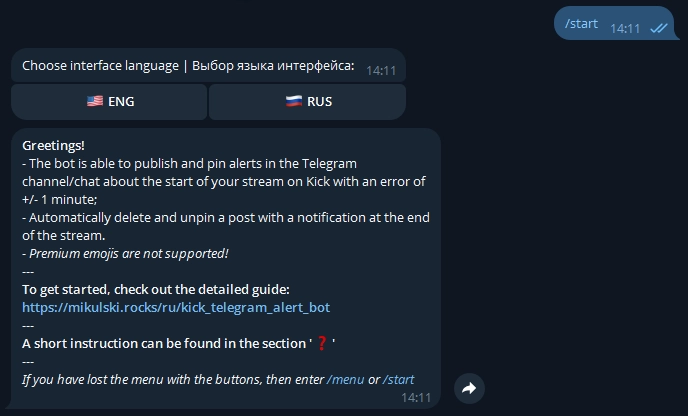
With the first message, it will give a greeting, prompt you to choose the interface language, and a menu with buttons will be displayed through which all manipulations with the bot will take place.
Adding a bot to the ▶️Telegram Channel/chat
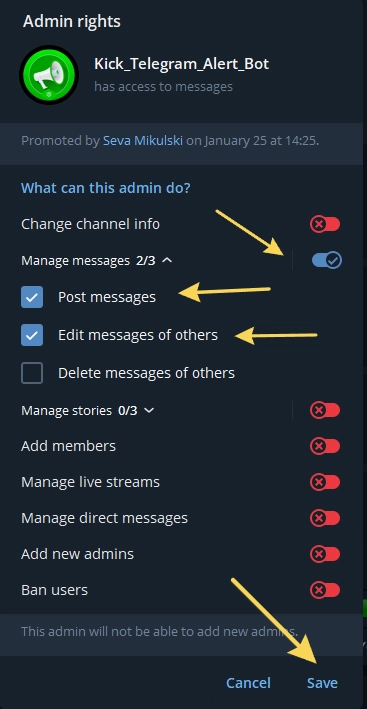
In order for the bot to post alerts in a given Telegram channel/chat, you need to add it there as an administrator and allow it to post messages. All other permissions can be safely removed (for chats, everything in general).
The exception is the Auto-pin function. Additional flags are needed for it to work correctly.:
For chats — “Pinning messages” and “Deleting messages”
For channels — “Editing other people’s publications”
After you do this, then the Channel ID/The chat is automatically linked to the bot and displayed in the “Telegram channel” line (the “Check settings” button).
Keep in mind that the bot is linked to the Id of the last channel /chat where you appointed it as an administrator, and resets the Id when it is deleted or removed from the admin position.
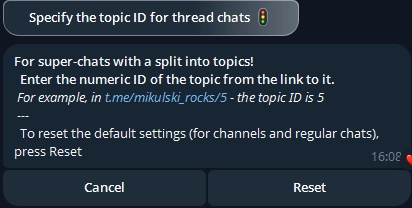
For chats divided into topics, you must additionally indicate the number of the desired branch using
the ⚠️Enable/Disable menu.
This number can be found in the link to the chat topic (for example, in t.me/mikulski_rocks/5 – the topic ID is 5).
By default, the value is 0, which is correct for regular channels and chats. For chats divided into topics, notifications in this case will be published in the first created one. topic.
You can exclude the bot from the channel or chat at any time or disable permission to publish.
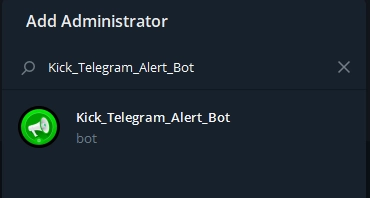
The only thing that is important here is to add this particular bot, in case other malicious bots suddenly appear pretending to be them. Therefore, I recommend entering the full link in the search query and making sure that the bot’s address matches @Kick_Telegram_Alert_Bot in the search result.
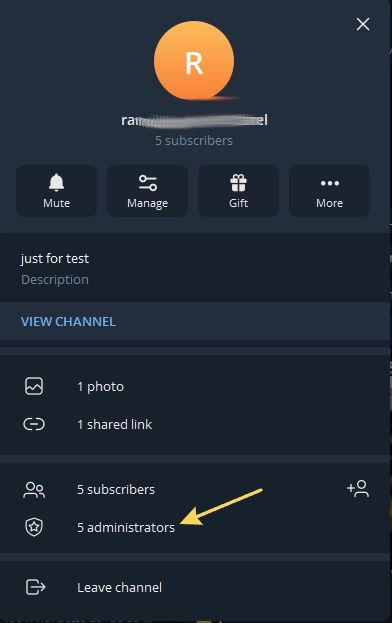
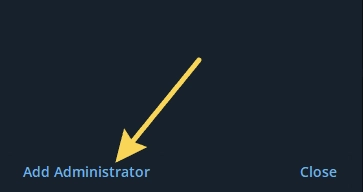
For channels, this is done as follows:Channel Management -> Administrators -> Add an administrator -> Insert a link to this bot -> OK -> Disable all toggle switches except Message Management -> Post messages (+ “Edit other people’s posts” if you plan to use auto-pin)
*For chats you can remove all permissions for chats (except “Pinning messages” and “Deleting messages” if you plan to use auto-pin).
Now you need to go through all the buttons and enter the necessary data:
Be careful when you go to the menu where you need to enter data: any pressed button on the interface is perceived as text input!
To exit this menu without making any changes, use the Cancel button.
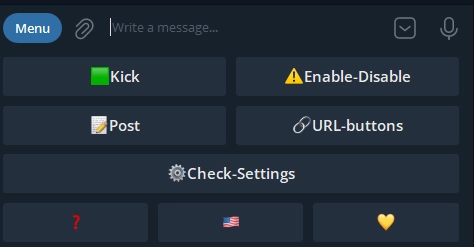
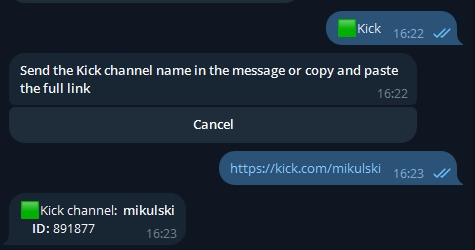
🟩Kick
By clicking on this button, the bot will ask you to send it a message with the ID of your Kick channel.
You can send the entire link, for example:
https://kick.com/mikulski
Or just the ID (name) of the channel:mikulski
📝Post
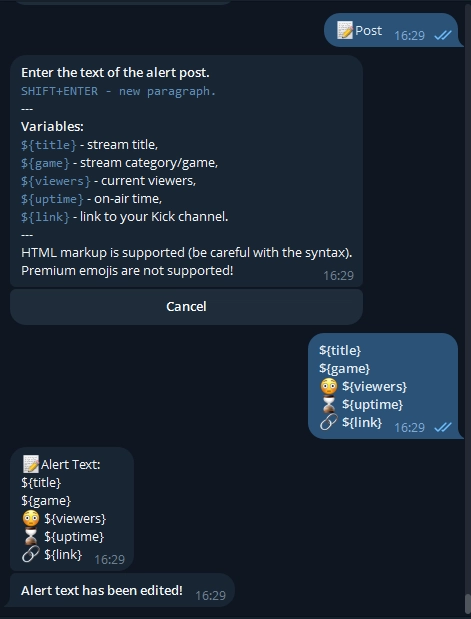
Here you need to write the text of the message that will be published in the Telegram channel / chat.
There are variables (substituted values) that will be pulled up from your stream/channel data:${title} – stream name;${game} – category;${link} – a link to your Kick channel${viewers} – number of current viewers;${uptime} – on-air time;
You can also add any text and links.
HTML markup is available (all tags supported by Telegram).
⚠️Enable-Disable
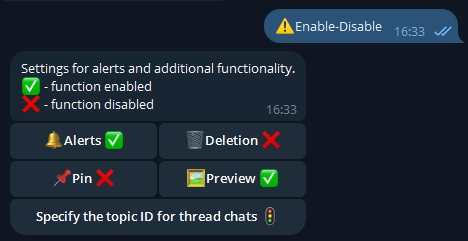
This button opens a menu in which you can turn on/off 🔔publishing of alerts, 🗑️auto-deleting and 📌auto-pinning posts with alerts.
And also activate 🖼️Preview: attaching a screenshot image of the broadcast to the post (updated once a couple of minutes).
If the offline stream or preview didn’t have time to be generated (it takes a few minutes), then the default cover will first be pulled up as an image.
And also specify the trade ID for thematic chats.
By default, everything is disabled.
It is advisable to disable notifications if you plan to take a long break from streaming.
⚙️Check-Settings
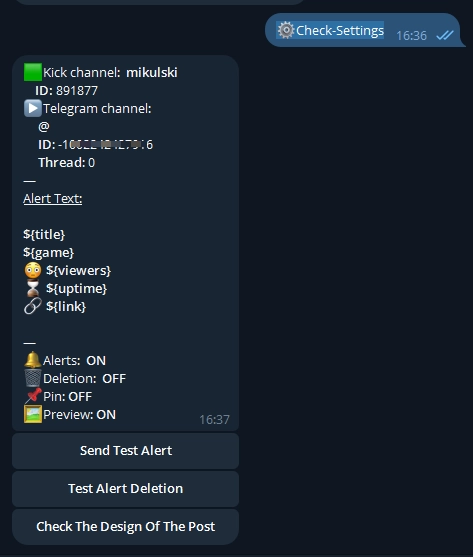
A button that allows you to view the current settings and make sure that everything is configured correctly.
You can also send a test alert – the bot will pull up information from the channel and point out errors, if any.
And then delete this message with the test delete button.
These buttons can also be used as emergency levers to send/delete alerts manually.
“Check the Design of the Post” sends the post directly in the dialog with the bot. The data is taken from memory (so it may be outdated) to speed up the checking process and reduce the number of requests to servers.
🔗URL-buttons
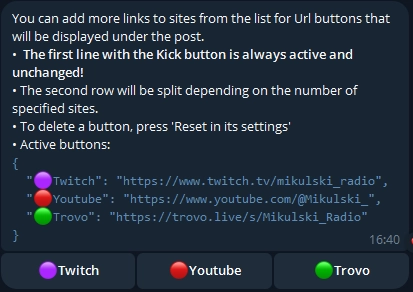
A link button (Url button) leading to your Kick channel will always be displayed under each post. But you can add such buttons for other sites through this menu.
Click on the appropriate button from the list and send the full link.
To delete the button, click Reset in its settings.
The first line with the Kick button is always active and unchanged!
The second row will be split depending on the number of specified sites.
❓️Help/Reference
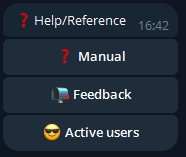
The button opens a menu where you can read the instructions, find ways to contact me, and view a list of active users.
❌Deleting user
The bot only stores your Telegram ID and channel ID/a chat to identify the desired profile when sending a post and the data that you enter yourself in the settings.
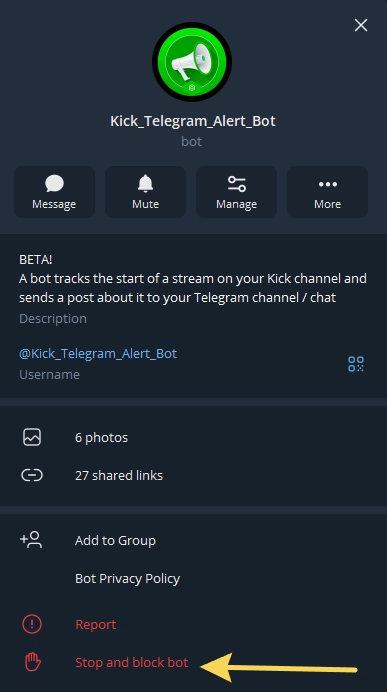
To delete all stored data and stop using the bot, it is enough to click on the top panel with its name in the dialog with it to open the “Bot Information” menu and click “Stop and block” at the very bottom.
To activate it again and start from scratch, click “Restart”.
Result
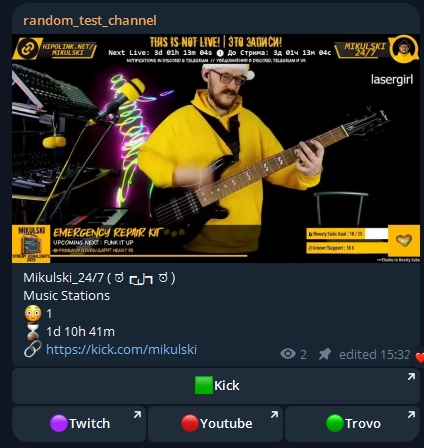
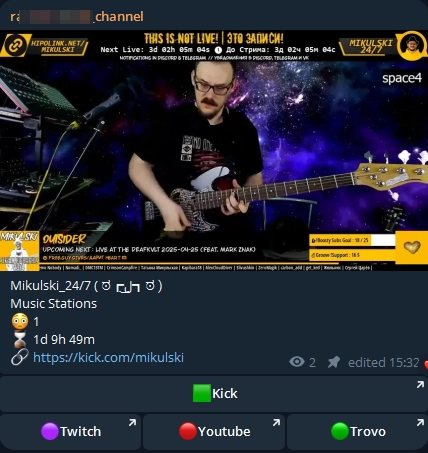
After all the settings are completed and you start the stream, then with an error of one minute, the bot will send a message to your Telegram channel / chat.
If “Pin” is enabled, it will also try to pin it and delete the system message.
In the screenshot example, the text of the post is given as follows:
${title}
${game}
😳 ${viewers}
⌛️ ${uptime}
🔗 ${link}
The preview is enabled and additional Url buttons (Twitch, Youtube, Trovo).
When you complete the stream and you have “Auto-delete posts” enabled, the bot will delete the message with the same margin of error.
If “Pin” is enabled, the bot will try to unpin the post.
It is noteworthy that Telegram removes its own notification after deleting the message, that is, it stops “hanging” unread by the user.